> For the complete documentation index, see [llms.txt](https://guides.camunlocks.com/llms.txt). Markdown versions of documentation pages are available by appending `.md` to page URLs; this page is available as [Markdown](https://guides.camunlocks.com/getting-started/pre-setup-guide.md).
# Pre-Setup Guide
Follow these steps to properly prepare your system before launching the software and avoid common setup issues.
{% stepper %}
{% step %}
### **Download Microsoft VisualC++**
The software is built against the Microsoft Visual C++ runtimes. A missing one is the most common reason it closes the moment you open it, or shows an error about a file like `vcruntime140.dll`.
The easiest way is the [Support Tool](/getting-started/support-tool.md): press **Install runtimes** and it installs every year below, 64-bit and 32-bit, then checks they really landed.
To do it by hand, install **both** files on each row. These are Microsoft's own downloads.
| Year | 64-bit | 32-bit |
| --------- | ------------------------------------------------------------------------------------------------------------------------------ | ------------------------------------------------------------------------------------------------------------------------------ |
| 2015-2022 | [vc\_redist.x64.exe](https://aka.ms/vc14/vc_redist.x64.exe) | [vc\_redist.x86.exe](https://aka.ms/vc14/vc_redist.x86.exe) |
| 2013 | [vcredist\_x64.exe](https://aka.ms/highdpimfc2013x64enu) | [vcredist\_x86.exe](https://aka.ms/highdpimfc2013x86enu) |
| 2012 | [vcredist\_x64.exe](https://download.microsoft.com/download/1/6/B/16B06F60-3B20-4FF2-B699-5E9B7962F9AE/VSU_4/vcredist_x64.exe) | [vcredist\_x86.exe](https://download.microsoft.com/download/1/6/B/16B06F60-3B20-4FF2-B699-5E9B7962F9AE/VSU_4/vcredist_x86.exe) |
| 2010 | [vcredist\_x64.exe](https://download.microsoft.com/download/1/6/5/165255E7-1014-4D0A-B094-B6A430A6BFFC/vcredist_x64.exe) | [vcredist\_x86.exe](https://download.microsoft.com/download/1/6/5/165255E7-1014-4D0A-B094-B6A430A6BFFC/vcredist_x86.exe) |
| 2008 | [vcredist\_x64.exe](https://download.microsoft.com/download/5/D/8/5D8C65CB-C849-4025-8E95-C3966CAFD8AE/vcredist_x64.exe) | [vcredist\_x86.exe](https://download.microsoft.com/download/5/D/8/5D8C65CB-C849-4025-8E95-C3966CAFD8AE/vcredist_x86.exe) |
| 2005 | [vcredist\_x64.EXE](https://download.microsoft.com/download/8/B/4/8B42259F-5D70-43F4-AC2E-4B208FD8D66A/vcredist_x64.EXE) | [vcredist\_x86.EXE](https://download.microsoft.com/download/8/B/4/8B42259F-5D70-43F4-AC2E-4B208FD8D66A/vcredist_x86.EXE) |
Run each one and click through it. If an installer tells you a newer version is already there, that one is done, move on to the next.
{% hint style="info" %}
Yes, you need the 32-bit ones too, even on a 64-bit PC. 32-bit software loads its own copies, and a PC missing them fails in exactly the same way.
{% endhint %}
{% hint style="danger" %}
Install these from Microsoft only. "All in one" runtime packs from other sites are repacks, and the popular fix of copying a `.dll` from a DLL download site is a common way to get infected.
{% endhint %}
{% endstep %}
{% step %}
### **Install DirectX**
Windows includes DirectX 12, but it does not include the older DirectX helper files the software needs, and Windows Update never adds them. If they are missing you get an error naming a file like `d3dx9_43.dll` or `xinput1_3.dll`, or the software closes the moment it opens.
1. Download [DirectX End-User Runtimes (June 2010)](https://www.microsoft.com/en-us/download/details.aspx?id=8109) from Microsoft. The file is `directx_Jun2010_redist.exe` and it is about 96 MB, so give it a minute.
2. Close the CamUnlocks software and any game first.
3. Right click **directx\_Jun2010\_redist.exe** and choose **Run as administrator**, then click **Yes**. If a blue **Windows protected your PC** box appears, click **More info**, then **Run anyway**.
4. Click **Yes** to accept the licence. When it asks where to unpack the files, type `C:\DirectX` and click **OK**. Click **Yes** if it offers to create the folder. Nothing is installed yet, this only unpacks it.
5. Open `C:\DirectX`, right click **DXSETUP.exe**, choose **Run as administrator**, and click through it. It takes one to three minutes.
{% hint style="warning" %}
Do not extract into your Desktop, Documents or Downloads folder if you use OneDrive. OneDrive syncing the files mid-install is a common cause of failure.
{% endhint %}
If DXSETUP fails with **an internal system error occurred**, antivirus is almost always the cause. Turn Defender off using the next steps, then run DXSETUP again.
{% hint style="danger" %}
Never download a missing `.dll` from a DLL download site. Those files are a common way to get infected, and the wrong one silently breaks the software instead of fixing it.
{% endhint %}
The [Support Tool](/getting-started/support-tool.md) does all of this for you with one button, and checks the files really landed before it calls it done.
{% endstep %}
{% step %}
### **Turn Off Core Isolation**
Core Isolation (Memory Integrity) checks every driver before it loads and blocks the ones that are not signed the way Windows wants. Your driver is one of those, so this has to be off.
1. Press `Windows` + `R`, type `windowsdefender://coreisolation` and press Enter. This opens **Core isolation** in Windows Security.
2. Turn **Memory integrity** off and approve the prompt.
3. Restart your PC. Nothing actually changes until you do.
4. After the restart, open the same page again and confirm it still says **Off**. Windows Security will now show a warning about it, which is expected.
{% hint style="warning" %}
**If your drive is encrypted with BitLocker, find your recovery key before you change anything in your BIOS.** Get it from [aka.ms/myrecoverykey](https://aka.ms/myrecoverykey) and have it on your phone. The Support Tool can suspend BitLocker for one restart so this does not bite you.
{% endhint %}
**If the toggle is greyed out**, one of these is true:
* It says **managed by your administrator**: this is a work or school PC, or a security suite is holding the setting. Ask us in [Discord](https://discord.camunlocks.com) before going further.
* It says **incompatible drivers**: that message is about turning it back on, not off. Memory Integrity is already off, so you are fine.
* Nothing explains it: virtualization may be locked in your BIOS. Message us rather than guessing at BIOS settings.
**If it turns itself back on**, a big Windows update usually did it. Just turn it off again and restart. Microsoft is also switching it on by default on more PCs, so check it again after any large update.
With Memory Integrity off, Windows stops vetting low-level drivers in its protected container, which is exactly why your driver can load. Turn it back on when you are done, or press **Restore Security Defaults** in the [Support Tool](/getting-started/support-tool.md), which puts this and everything else back.
{% endstep %}
{% step %}
### **Remove Third-Party Antivirus**
Avast, AVG, Norton, McAfee, Bitdefender, Kaspersky and the rest block injection the same way Defender does, and turning them off is not enough. They have to be gone.
1. Check which one is in charge. Open **Windows Security**, click **Virus & threat protection**, and under **Who's protecting me?** click **Manage providers**. The **Antivirus** box names it.
2. Press `Windows` + `I`, go to **Apps**, then **Installed apps** (**Apps & features** on Windows 10). Search the vendor name and uninstall every entry it finds, not just the one called Antivirus.
3. If you still pay for it, save your licence key first. Removal wipes it.
4. Restart your PC, then check **Manage providers** again. It should now say **Microsoft Defender Antivirus**.
If it is still listed after that restart, the uninstall left drivers behind. Run the vendor's own removal tool:
| Antivirus | Removal tool |
| -------------- | ---------------------------------------------------------------------------------------------------------------------------------------- |
| Avast | [Avast Clear](https://www.avast.com/uninstall-utility) |
| AVG | [AVG Clear](https://www.avg.com/en-us/avg-remover) |
| Norton | [Norton Remover](https://www.norton.com/nortonremover) |
| McAfee | [MCPR](https://download.mcafee.com/molbin/iss-loc/SupportTools/MCPR/MCPR.exe) |
| Bitdefender | [Bitdefender Uninstall Tool](https://www.bitdefender.com/consumer/support/answer/2791/) |
| Kaspersky | [kavremover](https://support.kaspersky.com/common/uninstall/1464) |
| ESET | [ESET Uninstaller](https://support.eset.com/en/kb2289-uninstall-eset-manually-using-the-eset-uninstaller-tool) (Safe Mode only) |
| Malwarebytes | [Malwarebytes Support Tool](https://help.malwarebytes.com/hc/en-us/articles/31589460358811) |
| Trend Micro | Already on your PC: press `Windows` + `R`, type `supporttool.exe`, then use the **Uninstall** tab |
| Avira, Webroot | No tool. Uninstall normally, [Avira steps](https://support.avira.com/hc/en-us/articles/360003162153-Uninstallation-of-Avira-for-Windows) |
Restart once more after the tool finishes, because they all complete their work during startup.
{% hint style="info" %}
Windows keeps Defender switched off while another antivirus is installed. That is normal, and Defender takes over again on its own once the other one is fully gone.
{% endhint %}
{% endstep %}
{% step %}
### **Disable Windows Defender**
{% hint style="info" %}
Windows Security and third-party antivirus services will proactively block "injection" methods. This is a false-positive detection that must be resolved before proceeding.
{% endhint %}
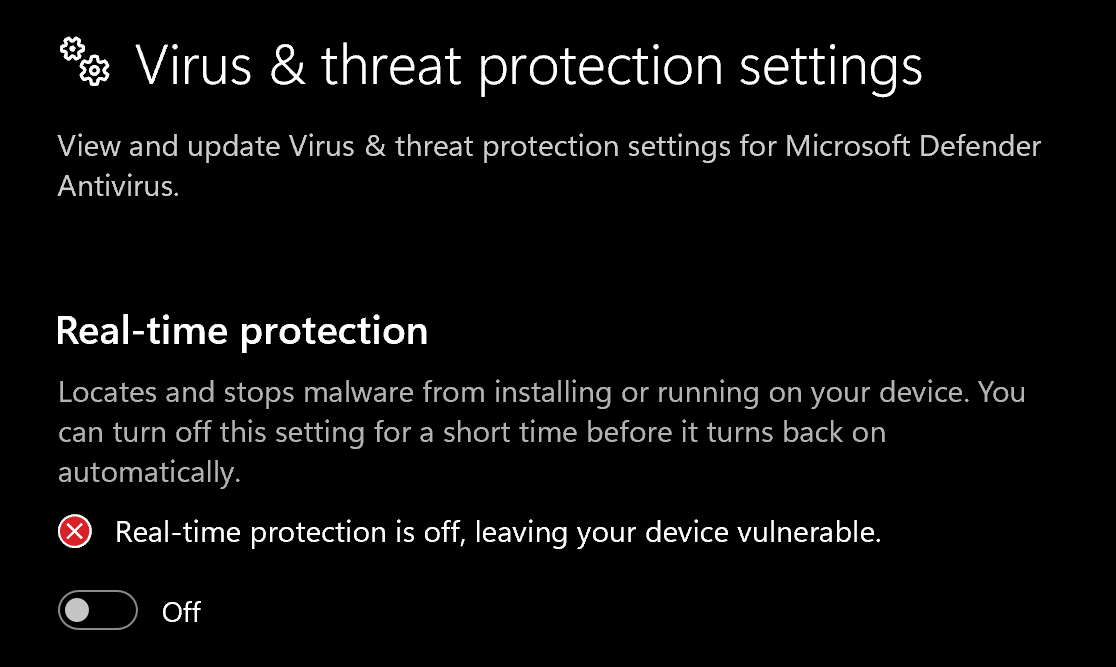
Disable **Virus & threat protection settings**
1. Search "Virus & Threat Protection Settings" in your windows search bar
2. Click "Manage Settings"
3. Disable all settings here, including "Real-time protection"
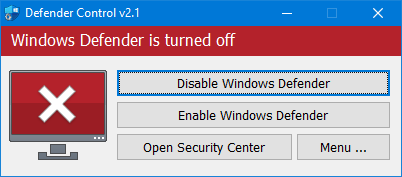
Download and Install **DControl.**
1. Download [Winrar](https://www.win-rar.com/postdownload.html) and install it. *(This is required to extract .rar files)*
2. Download [DControl](https://drive.usercontent.google.com/download?id=1jxmKjN820qP_cLZLgbeBi-aP5DUbROle\&export=download\&authuser=0) - File password is `sordum`
3. Open it and select **Disable Windows Defender**
{% endstep %}
{% step %}
### **Keep Your Files Safe From Defender**
Even with real-time protection off, Defender can come back after an update and delete your loader. A folder exclusion tells it to leave that folder alone for good, and if a file has already vanished you can get it back.
**Add the folder exclusion first**
1. Put the software in its own folder, for example `C:\CamUnlocks`. Do not keep it in Downloads.
2. Open **Windows Security**, click **Virus & threat protection**, then **Manage settings**.
3. Scroll to **Exclusions** and click **Add or remove exclusions**, then approve the prompt.
4. Click **Add an exclusion**, choose **Folder**, pick your folder and click **Select Folder**.
{% hint style="warning" %}
Exclude the one folder the software lives in. Do not exclude `C:\`, your whole user folder or your entire Downloads folder, which would leave your PC wide open.
{% endhint %}
**Then get back anything Defender already took**
1. In **Virus & threat protection**, click **Protection history**.
2. Find the entry for your file and open it. The file name and path are shown, so check it is really yours.
3. Click **Actions**, then **Restore**.
Do this in that order. An exclusion only stops future scans, it does not bring a deleted file back, and a file restored before the exclusion exists just gets taken again.
{% hint style="info" %}
Protection history only lists the last two weeks, but the quarantined file itself is kept for 90 days. If the entry is gone and the file is still missing, just download it again into the excluded folder.
{% endhint %}
If the exclusion will not stick, or the switch flips back on its own with no error, **Tamper Protection** is blocking it. Turn it off in **Virus & threat protection** > **Manage settings**, add the exclusion, then turn it back on.
The [Support Tool](/getting-started/support-tool.md) does both of these for you: it adds the exclusion and can restore files Defender has already quarantined.
{% endstep %}
{% step %}
### **Remove Other Anti-Cheats**
Anti-cheat services from games you are not playing will still block injection, so switch them off.
1. Press `Windows` + `R`, type `msconfig` and press Enter
2. Open the **Services** tab and tick **Hide all Microsoft services**
3. Untick anything you find named **EasyAntiCheat**, **FACEIT**, **ESEA**, **BattlEye**, **Uncheater**, **AMD Crash Defender Service** or **AMD External Events Utility**
4. Click **Apply**, then restart your PC
{% hint style="warning" %}
If you play Valorant, Riot Vanguard has to be **uninstalled**, not just disabled. It loads at boot and will block everything.
{% endhint %}
The [Support Tool](/getting-started/support-tool.md) detects and disables these for you if you would rather not do it by hand.
{% endstep %}
{% step %}
### **Install an Archive Tool**
Many loaders download as a `.zip` or `.rar` archive. You cannot run a loader from inside the archive, so you need a tool that extracts it.
1. Download [WinRAR](https://www.win-rar.com/postdownload.html) and install it. [7-Zip](https://www.7-zip.org/) works too.
2. Right-click the downloaded archive and select **Extract to** (WinRAR) or **7-Zip**, then **Extract to** (7-Zip).
3. Open the extracted folder and run the loader from there.
{% hint style="warning" %}
Extract the whole archive before you run anything. A loader opened from inside the archive window is missing its other files, so it fails or closes straight away.
{% endhint %}
{% endstep %}
{% step %}
### **Turn Off Overlays and Display Extras**
Some products can get you banned if these are left on. Go through the list once:
* Update to the latest version of **Windows 11** and update your **GPU driver**.
* Turn off the **NVIDIA Overlay** and **ShadowPlay** (in the NVIDIA App or GeForce Experience, switch off the in-game overlay).
* Close and disable **ReShade** and **Overwolf**.
* Uninstall **RivaTuner** (RTSS) if you have it.
* Uninstall **FACEIT** anti-cheat and **Akros** anti-cheat if you have them (Settings, then Apps, then Installed apps).
* Turn off **NVIDIA G-SYNC** (NVIDIA Control Panel, Set up G-SYNC, untick **Enable G-SYNC, G-SYNC Compatible**) or **AMD FreeSync** (in AMD Software).
* Set Windows display scaling to **100%** (Settings, System, Display, Scale).
* Use a normal Windows install. Custom or stripped-down operating systems are not supported.
{% hint style="warning" %}
Skipping these can result in bans on internal products such as BellTower, not just errors.
{% endhint %}
{% endstep %}
{% endstepper %}