> For the complete documentation index, see [llms.txt](https://guides.camunlocks.com/llms.txt). Markdown versions of documentation pages are available by appending `.md` to page URLs; this page is available as [Markdown](https://guides.camunlocks.com/getting-started/support-tool.md).
# Support Tool
The CamUnlocks Support Tool gets your PC ready to run our software in one click. It checks your system, shows you what is good and what needs a fix, and fixes it for you.
The Support Tool does the whole Pre-Setup Guide for you, automatically. It scans your PC, marks each setting green (ready) or red (needs a fix), and fixes anything that is not right with one click. It also keeps itself up to date, so you always have the newest version.
{% hint style="info" %}
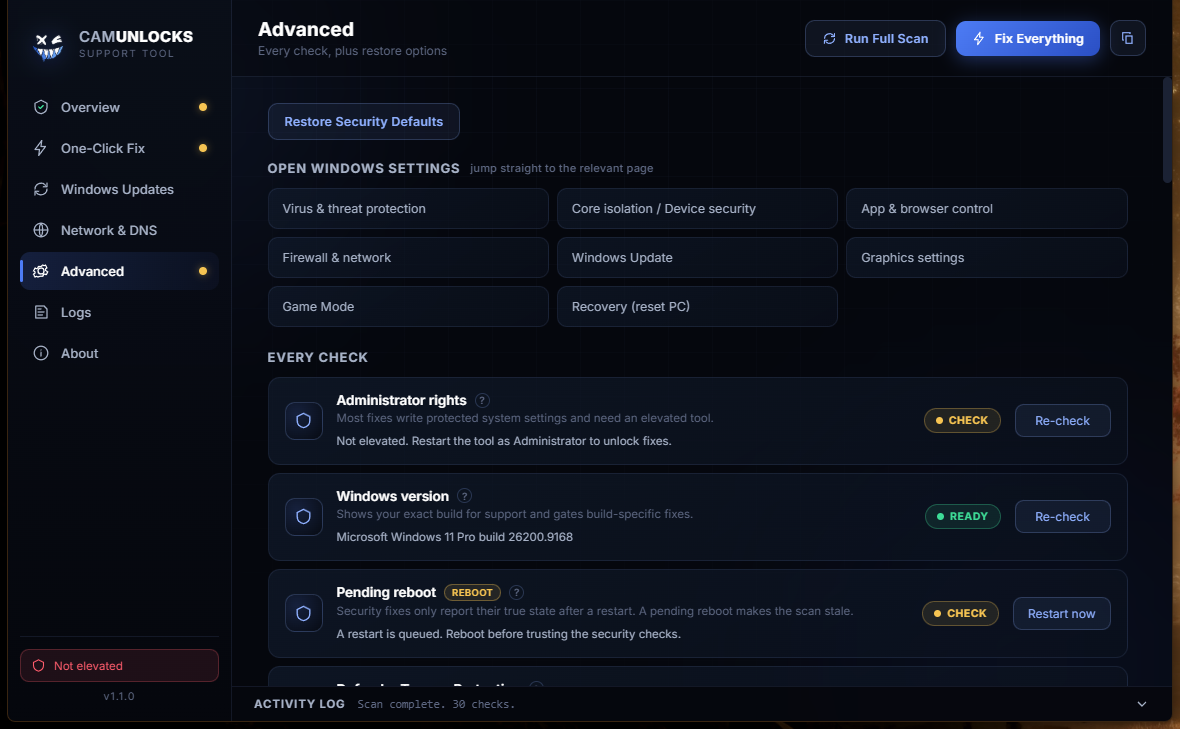
Everything the tool changes can be undone. There is a **Restore Security Defaults** button, and it asks you before any change that lowers a Windows security setting.
{% endhint %}
{% hint style="warning" %}
**If your drive is encrypted with BitLocker, find your recovery key first.** Changing Core Isolation or Secure Boot on an encrypted drive can make Windows ask for the recovery key at the next restart. The tool detects BitLocker and offers to suspend it for one restart so this does not happen, but have the key handy either way. You can find it at [aka.ms/myrecoverykey](https://aka.ms/myrecoverykey).
{% endhint %}
{% stepper %}
{% step %}
### Download and run the tool
1. Click the download link below. It saves a single file, `CamUnlocks-Support-Tool-Setup.exe`.
2. Run the installer. When Windows shows a blue **SmartScreen** notice, click **More info**, then **Run anyway**. This is expected because the tool turns off Windows security features so our software can run.
3. Open the Support Tool. It will ask for Administrator (click **Yes**), then it scans your PC right away.
{% hint style="success" %}
### [Download the CamUnlocks Support Tool](https://github.com/camwithadot/camunlocks-support-tool-releases/releases/latest/download/CamUnlocks-Support-Tool-Setup.exe)
This link always gives you the newest version. The download starts as soon as you click it.
{% endhint %}
Windows 10 (version 1903 or newer) and Windows 11 are supported. Windows Server and Windows Insider builds are not.
{% endstep %}
{% step %}
### Turn off Tamper Protection if the tool asks
If the tool shows **Defender Tamper Protection** as an issue, click its button to open **Windows Security**, turn **Tamper Protection** off, then come back and press **Run Full Scan** again.
This one has to be done by hand. While Tamper Protection is on, Windows blocks every change to Defender, so the Defender fixes cannot work until it is off.
{% endstep %}
{% step %}
### Read your results
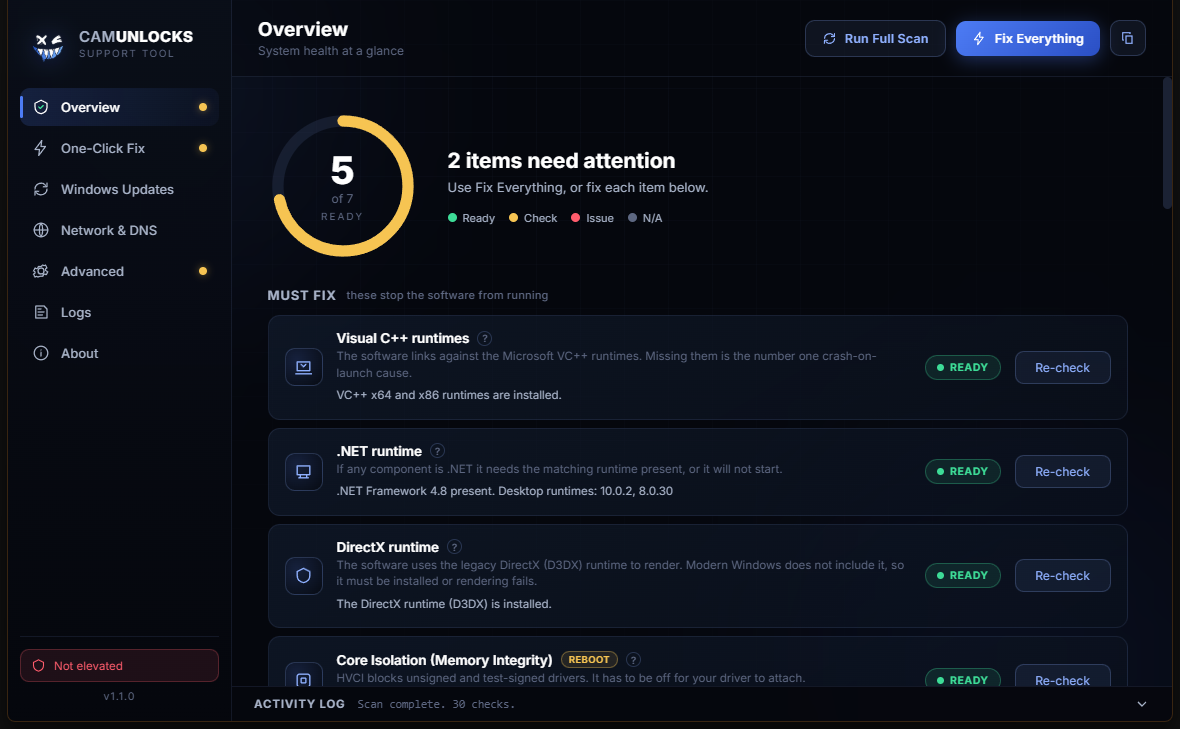
On the **Overview** tab you will see a ring and a list of checks:
* **Green (Ready)** means that setting is already correct.
* **Amber (Check)** means it is worth looking at.
* **Red (Issue)** means it needs a fix before our software will run.
The checks are grouped into **Must fix** (things that stop the software from running) and **Recommended** (things that make your setup stable and reliable).
{% endstep %}
{% step %}
### Fix everything
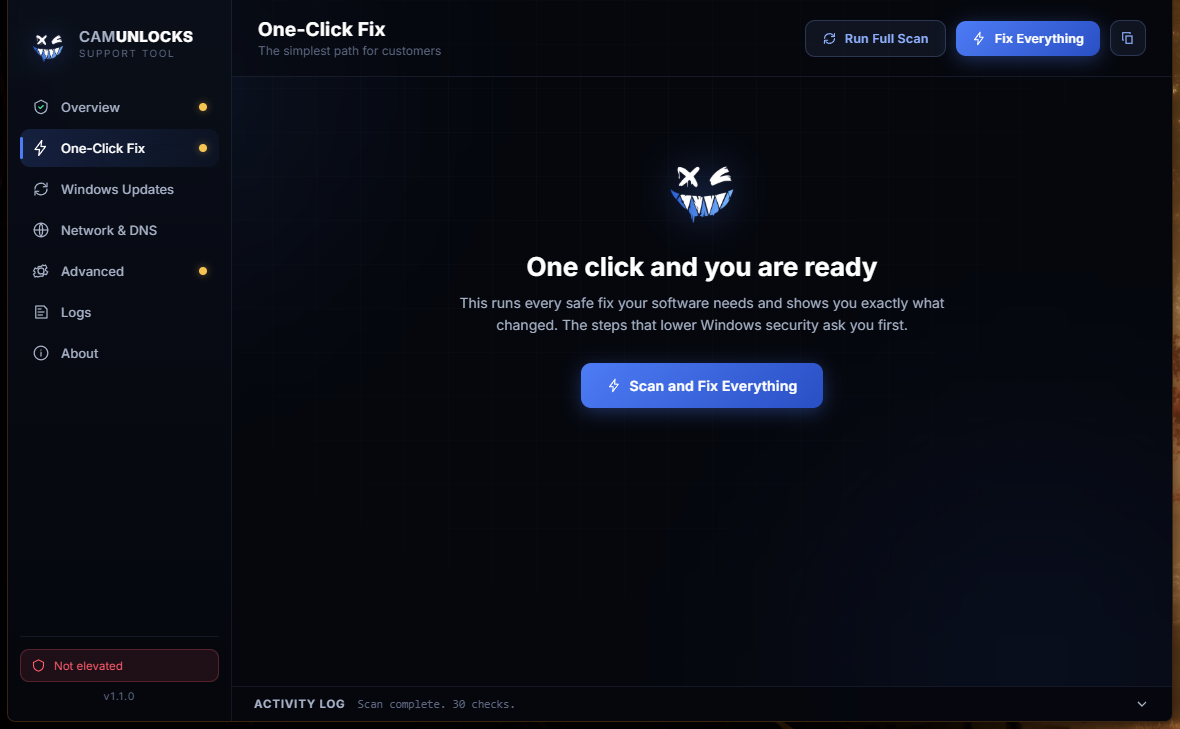
Click **Fix Everything** at the top, or open the **One-Click Fix** tab and press **Scan and Fix Everything**. The tool runs every safe fix on its own and asks you before anything that lowers a Windows security setting, so nothing happens behind your back. You can also fix each item one at a time with its own **Fix** button.
Some fixes ask for a restart to finish. When the ring turns fully green, your PC is ready.
{% endstep %}
{% endstepper %}
### What the tool checks and fixes
In one place, the Support Tool handles everything in the Pre-Setup Guide and more:
* **Runtimes:** Visual C++ (all years), .NET, and DirectX
* **Windows security for DMA:** Core Isolation / Memory Integrity, Virtualization Based Security, the vulnerable driver blocklist, Windows Defender, SmartScreen, exploit protection, and UAC
* **Keeping your software safe from Defender:** it adds a Defender folder exclusion so the client is not quarantined, and can restore files Defender has already taken. If your software went missing on its own, this is the fix.
* **Conflicts:** anti-cheats, game boosters and overlays (Razer, iCUE, Overwolf, MSI Afterburner, Wallpaper Engine, and more), third-party antivirus, Intel management services, and the iqvw64e driver
* **AMD Radeon:** turns off **Radeon Anti-Lag** and closes the **Radeon overlay and recording**. These hook into running programs and can interfere with our software. They only appear on AMD systems.
* **Stability:** Fast Startup, Hyper-V, Hardware GPU Scheduling, OneDrive, and a forced time sync
* **Network:** a firewall allow rule so the client can reach activation and updates
{% hint style="info" %}
**DirectX takes a minute.** The DirectX runtime is a large download from Microsoft (around 95 MB). When you click **Install DirectX** it may look like nothing is happening for a while. Let it finish, and the tool will tell you once it has checked the files are really installed.
{% endhint %}
### Network and DNS
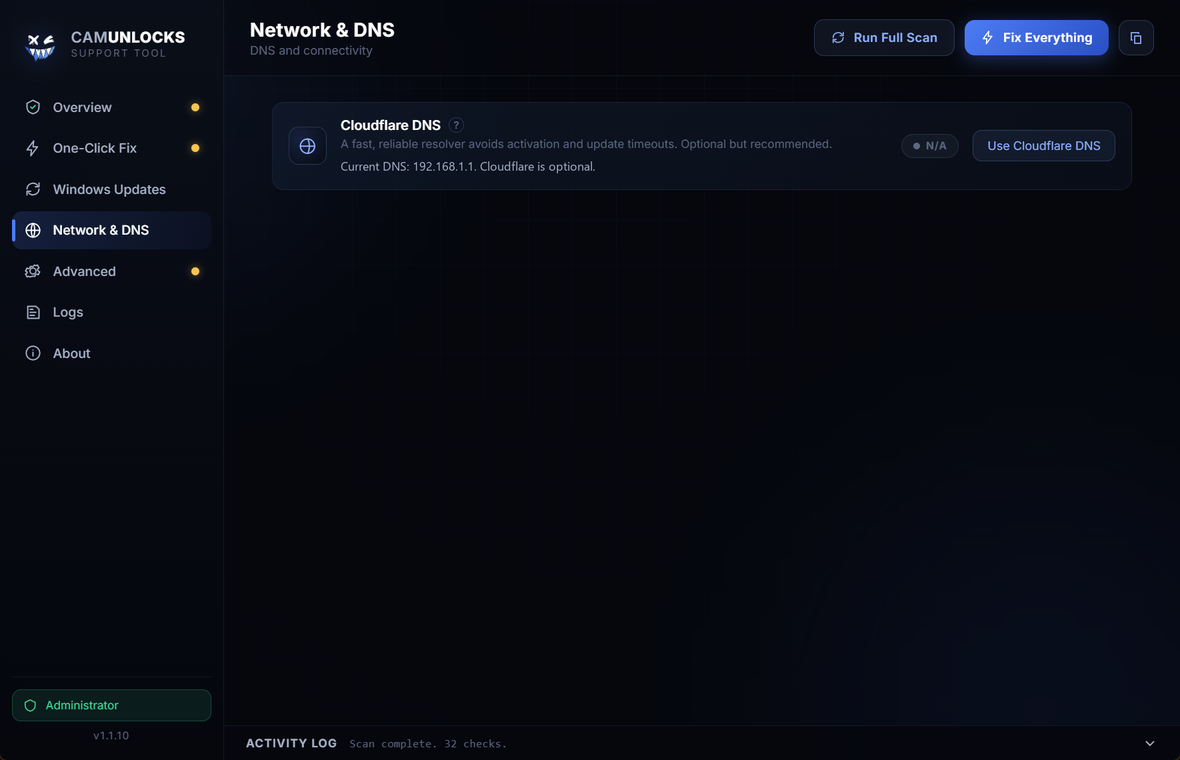
If activation or updates time out, open the **Network & DNS** tab and apply **Cloudflare DNS** (1.1.1.1). It is optional, but a fast, reliable resolver clears up most connection timeouts. The same tab puts your DNS back to automatic whenever you want.
### Windows Updates
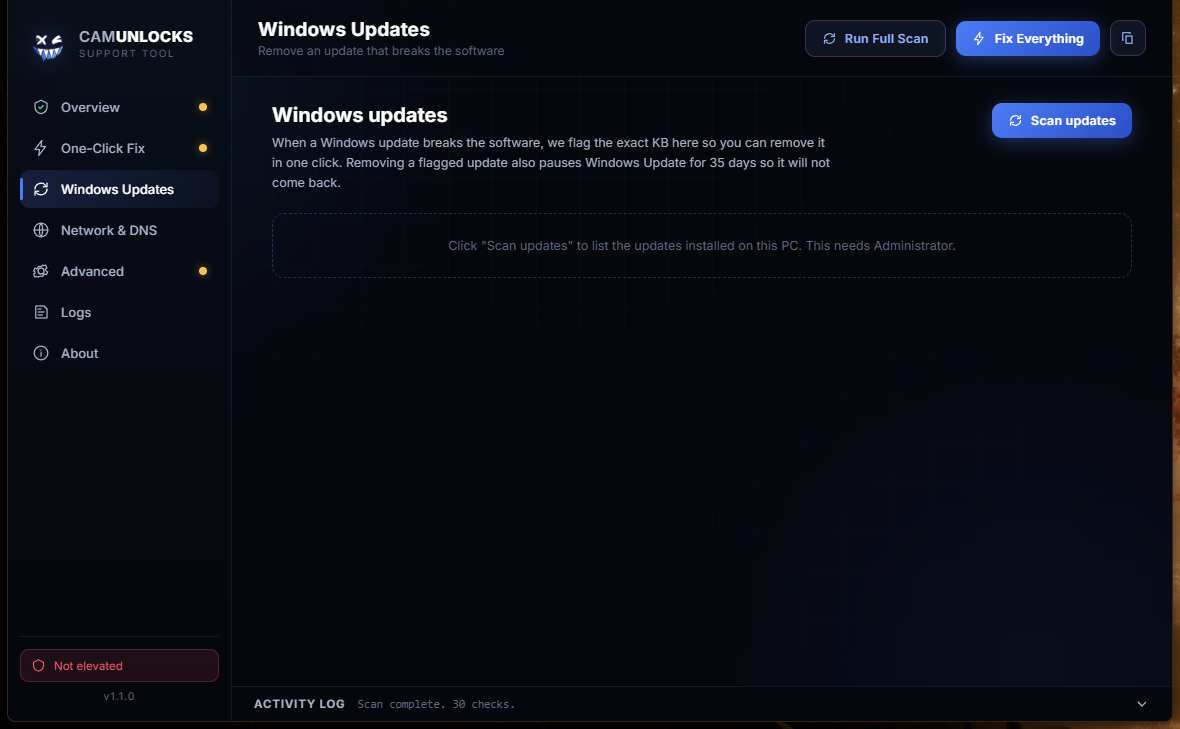
If a Windows update ever breaks our software, the **Windows Updates** tab shows the exact update to remove and takes it out in one click. Removing a flagged update also pauses Windows Update for 35 days so it does not come straight back.
A few things worth knowing about Windows updates:
* **Restart to finish.** Windows removes an update during the next restart, so it is not gone until you reboot.
* **Not every update can be removed.** Windows only lets you remove the most recent update, and once a newer Windows feature update folds an older one in, Windows will not remove it at all. The tool tells you which case you are in instead of failing quietly.
* If an update cannot be removed, it is not a fault with the tool. Windows will not show it under **Settings, Windows Update, Update history, Uninstall updates** either.
### Advanced
The **Advanced** tab has quick shortcuts to the Windows settings pages and a **Restore Security Defaults** button that undoes every change the tool made.
{% hint style="success" %}
The tool updates itself. Each time you open it, if a newer version is out, it offers a one-click update and reopens on the new version. You never have to re-download it.
{% endhint %}
### Need a hand?
If anything is unclear or a fix does not work, open the **Logs** tab, click **Save report to Desktop**, and send that report to us on [Discord](https://discord.camunlocks.com).